Finding real PC build deals is harder than it looks. Prices on graphics cards, memory, and processors change constantly, "sale" tags are often attached to prices that never moved, and a cheap part is no bargain if it does not fit the rest of your build. This guide shows exactly how we find good PC build deals, and how you can use the same tools on ClearanceStream to price a complete, compatible build for less.
It covers both paths: building your own PC from discounted parts, and buying a discounted prebuilt when that turns out cheaper. Everything here reflects how our site actually works, including how we verify discounts and check compatibility, so you know what you can trust and what to double-check.
The short answer
To find a good PC build deal:
- Set a budget and a target, such as 1080p high settings or 1440p high refresh, before you look at prices.
- Start from a complete build on our PC Builds page instead of a blank list. Each one is already compatibility-checked and priced from current deals.
- Swap in discounted parts using the PC Part Picker, which checks sockets, memory type, case fit, and power as you go.
- Hunt the expensive parts first. The video card, processor, and memory decide most of the total, so a real discount there matters most.
- Verify the discount: look for a genuine reference price, a recent price-checked time, and the right specs.
- Compare against prebuilts. When a discounted prebuilt costs about the same as its parts, it often wins.
Step 1: Set a budget and a performance target
The fastest way to overspend is to shop without a target. Decide what you want the PC to do, then size the budget to it.
- Entry level 1080p gaming: popular titles like Fortnite, Valorant, and Minecraft at high settings. See our Entry Level PC Build For Beginners.
- Mainstream 1080p and 1440p gaming: current releases at high settings. See the AMD Gaming Build and the Intel Gaming PC Build.
- Gaming plus streaming: more cores, 32GB of memory, and a video card with a strong hardware encoder. See our Streaming PC Build For Beginners.
- Work and school: no video card needed. See our Budget Home Office PC Build.
If you are unsure how much to spend, our gaming PC budget guide walks through what each price tier gets you.
Step 2: Start from a complete build, not a blank list
Every build on our PC Builds page is generated from current listings. For each one, we pick parts that work together, check the combination for compatibility, estimate the power draw, and add up the total. The title of each build shows its current total, so you can see at a glance what a full, working PC costs today.
Starting here saves you from the most common mistakes: a processor that does not fit the motherboard, memory of the wrong generation, or a power supply that is too small. From any build, use Customize in PC Builder to open the same parts in our builder, then swap the ones you want to change.
Step 3: Hunt the parts that move the total
In a typical gaming build, the video card is the single biggest cost, followed by the processor and memory. A 20% discount on a graphics card can save more than the entire cost of the case. Focus your deal hunting in this order:
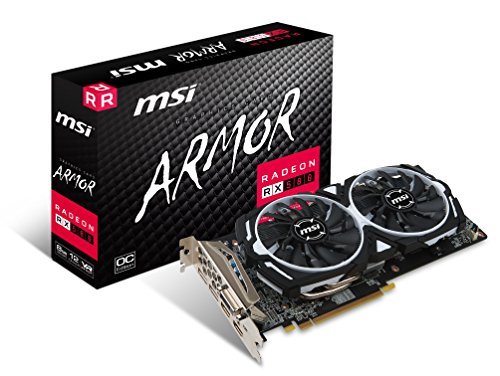
- Video card. Browse video card deals and filter by your target chip. Cards with the same chip from different brands perform within a few percent of each other, so a discounted basic model is often the best buy. Our guide to choosing a graphics card covers how much video memory you need.
- Processor and motherboard. Pick the processor, then find a compatible board on our motherboard deals page. Filter by socket, such as AM5 or LGA1851, so every result fits.
- Memory. Memory prices swing a lot, and at the time of writing in late 2026 they are unusually high, with a 32GB DDR5 kit costing more than many entry-level video cards. That makes a genuine discount on memory especially valuable. Read how much RAM you need before deciding between 16GB and 32GB.
- Everything else. Storage, the case, the cooler, and the power supply are smaller costs. Look for deals, but do not compromise on power supply quality to save a few dollars.
Step 4: Use filters to surface real discounts
Every category and brand page on ClearanceStream has a sortable product table with filters, so you can cut a long list down to genuine deals quickly:
- On sale only hides products at their regular price.
- Minimum discount shows only products at least 10%, 20%, 30%, or 50% off, or only Hot deals, which are products more than 40% below their reference price.
- Spec filters narrow by the details that matter for that category, such as socket and chipset for motherboards, memory type and speed for RAM, or GPU chip and video memory for graphics cards.
- Sortable columns let you sort by price, discount, or any spec.
For a quick scan of everything on sale across the site, check Today's Tech Deals, which lists every discounted product we track in one filterable list.
How we verify a discount
A discount is only useful if it is real. Here is exactly what we do, so you know what our discount labels mean:
- A discount appears only with a genuine reference price. We show a strikethrough price and a percentage only when the retailer reports a reference price above the current price. Products at their regular price are listed without one. We never add our own markups or invent list prices.
- Implausible discounts are dropped. A reference price that would mean more than 80% off almost always reflects a bad listing, so we do not show it as a discount.
- Every price shows when it was checked. Look for the price-checked time on product pages, builds, and lists. Prices can change after that, so always confirm the final price at checkout.
- HOT DEAL means more than 40% off the reference price, nothing else.
A reference price is not always the price the product usually sells for. Some reference prices are list prices that few people ever paid. Use the percentage as a starting point, and compare against similar products in the same table before buying.
Step 5: Check compatibility before you buy
A cheap part you cannot use is not a deal. Our PC Part Picker checks these as you add parts:
- The processor and motherboard use the same socket.
- The memory is the same generation (DDR4 or DDR5) as the motherboard.
- The case fits the motherboard size: ATX, Micro-ATX, or Mini-ITX.
- The CPU cooler supports the socket, when its listing says so.
- The power supply covers the estimated draw with headroom. We add about 40% above the estimate.
- A processor without integrated graphics is paired with a video card.
The builder flags anything it could not confirm from a listing. Physical details like video card length and cooler height are not checked automatically, so confirm them in each product listing.
Step 6: Compare against discounted prebuilts
Building is not always cheaper. Prebuilt makers buy parts in bulk, and a discounted prebuilt can cost the same as, or less than, its parts bought separately, with assembly, Windows, and a single warranty included.
Price your build in the PC Builder, then compare it with prebuilt gaming PC deals with the same graphics card and processor. If the prebuilt is within about 10% of your parts total, it is usually the better deal unless you want specific parts. Our prebuilt gaming PC buying guide explains what to check inside a prebuilt, like the power supply and memory configuration.
Timing: when PC build deals are best
Two kinds of timing produce the best PC build deals. The big sale events, especially Black Friday through Cyber Monday and the mid-summer sales, bring broad discounts. The quieter but often deeper discounts come after new hardware launches, when the previous generation of graphics cards and processors is cleared out. Our guide to the best time to buy a gaming PC covers the full calendar.
If you are not in a hurry, price your build now, note the total, and recheck it before the next sale event. You will know immediately whether a sale price is actually lower.
Red flags to watch for
- A "sale" with no reference price, or a percentage that seems too good. Check similar products in the same category.
- Missing or vague specs, such as a graphics card listing that does not name the GPU chip or a memory kit without its speed.
- Bundles that hide the price of each part. Price the parts separately before assuming a bundle saves money.
- Renewed or refurbished parts labeled vaguely. They can be good value, but know what you are buying. Our product tables show the condition when a listing states it.
- The wrong generation. Older parts are discounted for a reason. That is fine when you want them, but confirm the socket and memory type match your build.
Buying the whole build
When your list is ready, use Buy all parts on any build or in the PC Builder to add every part to your cart in one step. Review each item and its price in the cart before checking out, since prices can change between our last check and your purchase.
The bottom line
Good PC build deals come from three habits: starting with a clear target, spending your deal-hunting effort on the video card, processor, and memory, and verifying both the discount and the compatibility before you buy. Start with a complete build on our PC Builds page, customize it in the PC Part Picker, and use the filters on each category page to find genuine discounts. Then compare your total against a discounted prebuilt before you check out.
Frequently asked questions
What is the best way to find PC build deals?
Start from a complete, compatibility-checked build, then look for real discounts on the most expensive parts first: the video card, processor, and memory. Verify each discount against a genuine reference price and compare your total with discounted prebuilts.
Is it cheaper to build a PC or buy a prebuilt?
It depends on current prices. Discounted prebuilts can cost about the same as their parts, with assembly and Windows included. Price your build, then compare it with prebuilts that have the same video card and processor.
Which PC parts should I buy on sale?
The video card, processor, and memory, because they make up most of a build's cost. A genuine discount on the video card alone can save more than the cost of the case.
How do I know if a PC part discount is real?
Check that the discount is calculated against a genuine reference price, look at when the price was last checked, and compare the price with similar parts in the same category. On ClearanceStream, discounts only appear when the retailer reports a reference price.
What does HOT DEAL mean on ClearanceStream?
It marks products more than 40% below their reference price.
About the author
Bryce Dodson
Bryce Dodson covers gaming PC hardware for ClearanceStream, with a focus on prebuilt desktops, writing about how CPU, GPU, memory, storage, and power supply choices affect real-world performance and long-term upgradability.